Wizardo casino app for mobile play
With Wizardo on mobile, you do not need an APK, a separate app-store download or a second account. The Wizardo casino app works through a Progressive Web App, so you can add our platform to the home screen of an Android phone, iPhone or iPad and return to your account in just a few taps. If you prefer not to add a shortcut, you can continue using the mobile version directly in your browser. Here we explain how mobile access works, how to install the PWA and what to check before you play, deposit or manage your account from a smartphone.
Mobile access with our PWA


Our PWA, or Progressive Web App, gives you app-like access while remaining connected to the web version of Wizardo casino. In practice, you can place an icon on your home screen and open your account directly instead of searching for the site in your browser every time you want to play.
This also means there is no need to search for an unofficial APK or install a separate file from an external source. Your same player profile follows you between desktop and mobile, so you do not need a second account just because you are using another device.
If you play regularly from the same phone, the main benefit is simple: fewer steps between unlocking your device and reaching our lobby. If you only check your account occasionally, normal browser access may be enough.
Quick access to your games
Once the PWA is added, the icon stays on your home screen. One tap takes you back to Wizardo, where you can sign in, check your balance, open our lobby and review available promotions.
Play where it makes sense for you
Mobile access lets you move between desktop, smartphone and tablet without changing your player profile. This can be useful when you want to check your account away from your computer or play a shorter session on your phone.
That does not mean every situation is suitable for playing. Avoid gambling while driving, handling equipment that requires your attention or in any situation where you cannot properly follow your bets and balance.
Mobile lobby and screen navigation
A smartphone gives you less screen space than a desktop monitor, so we recommend using lobby categories and filters rather than scrolling through the full game selection. Start with the section you want — slots, live casino, providers, collections or tournaments — and narrow the lobby from there.
If you mainly play slots, portrait mode is usually the most convenient. For games with wider controls or live tables, rotating your phone to landscape can make bet buttons, game information and table layouts easier to follow.
Before you confirm: on a smaller screen it is easier to tap the wrong amount by mistake. Before confirming a larger stake, check the selected value and avoid increasing your bet simply to recover a losing run.
Games in the mobile lobby
On mobile, you can access the categories currently available in our lobby, including slots and live casino. The selection includes content from providers such as Pragmatic Play, NetEnt, Play'n GO, Evolution, Amatic and Hacksaw.
Instead of relying on a fixed list of titles, check the lobby when you sign in. Games can be added or removed over time, and availability may also depend on the provider or your location.
Before using real balance on a title you do not know, open the rules and paytable first. Check the minimum and maximum stake, winning combinations, bonus features and information about volatility or RTP when these details are available inside the game.
Live casino on a smartphone
Our lobby may also include live games such as blackjack, baccarat and roulette. This type of content uses continuous video streaming, so a stable connection becomes especially important during the session.
If the video starts freezing, do not increase your stake or confirm bets when you cannot clearly follow the table. Check the connection first and, if necessary, return to the lobby until the stream becomes stable again.
How to add Wizardo on Android
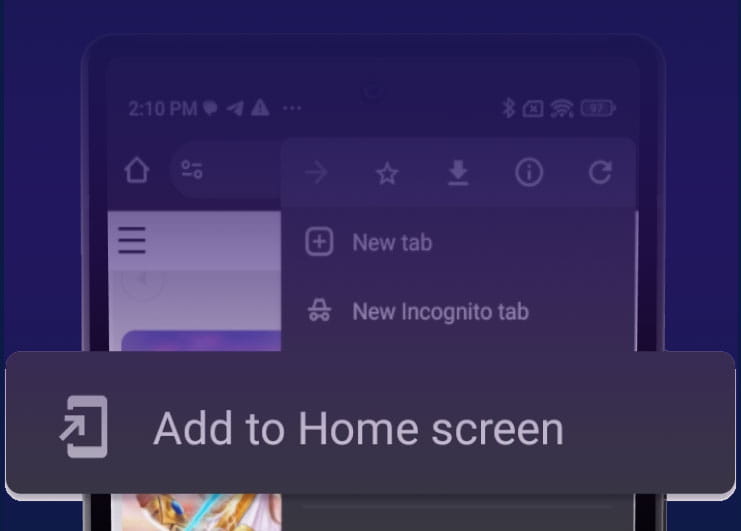 On Android, open the site through Google Chrome or another browser that supports Progressive Web Apps. The exact wording of the installation option can vary by browser version.
- Open the site in your mobile browser.
- Tap the three-dot menu.
- Choose “Add to Home Screen”, “Install app” or the equivalent option shown by your browser.
- Confirm the installation.
While adding the app, press the Install button on the screen. 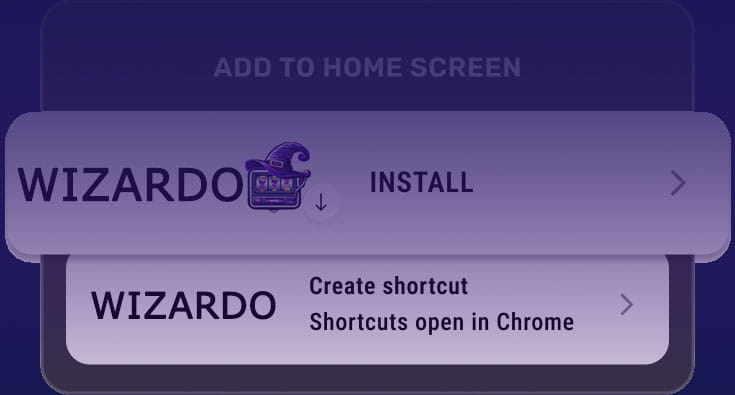
The icon will then appear on your home screen. Open it, sign in with your usual details and continue using the same account.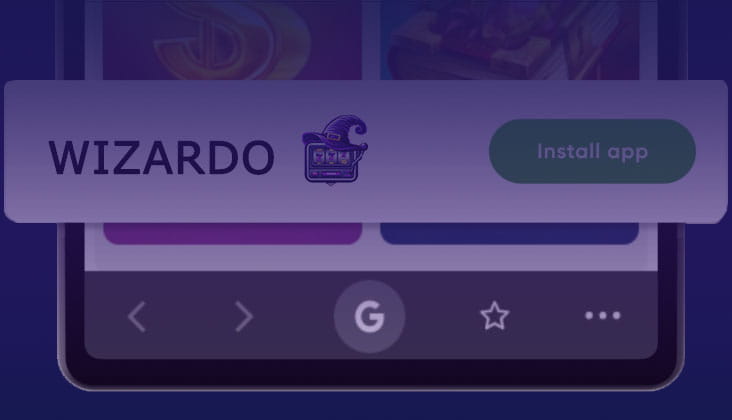
How to add Wizardo on iPhone or iPad
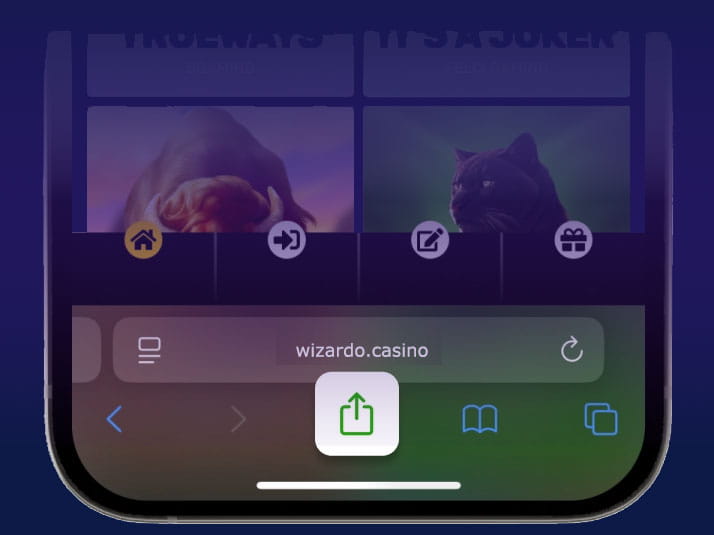 On Apple devices, use Safari to create the home-screen shortcut.
- Open Wizardo in Safari.
- Tap the Share button.
- Select “Add to Home Screen”.
- Confirm the displayed name and tap “Add”.
How to add Wizardo Casino to Home Screen.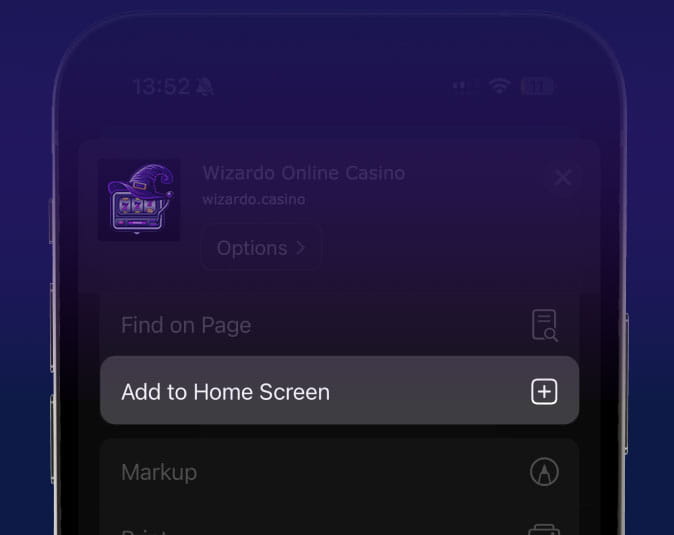
The icon will then appear alongside your other apps. If you remove it later, you only delete the shortcut from the device — your account remains available through the browser.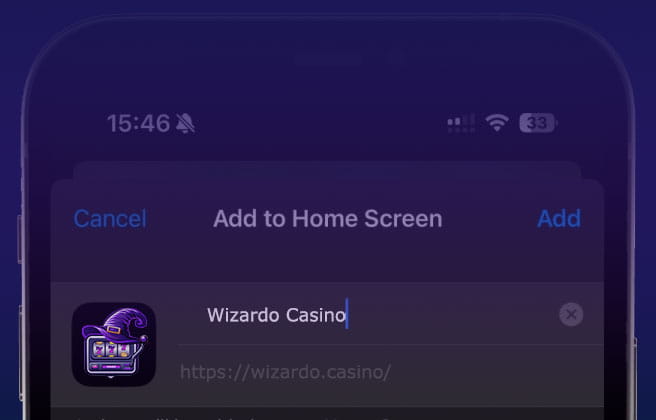
Mobile bonuses and promotions
Using the PWA does not create separate promotions or automatically change the conditions attached to your account. Offers remain connected to the same player profile whether you enter through desktop, mobile browser or the home-screen shortcut.
Before activating a Spell from your phone, open the offer details and check the conditions that actually affect how you can use it: minimum deposit, wagering requirement, validity period, eligible games, maximum bet and cashout limits.
Our current promotional structure includes deposit-based Spells with bonus funds and Free Spins. When choosing an offer, check the conditions before you fund the account so that the promotion fits the type of session you are planning.
We recommend: select the offer first, confirm which games contribute to wagering and only then make the qualifying deposit. This helps you avoid activating a bonus whose rules do not match the way you intended to play.
When you are ready, open the Promo section in your account and review the current terms before activating the offer.
Payments on mobile
You can access the payment area directly from a smartphone. Your Wallet may show methods such as Visa, Mastercard, Bitcoin, Ripple, Neosurf and Ezeewallet, depending on availability. The methods actually available to you can depend on your account, location and the options shown at the time of the transaction.
Before confirming a deposit, check the amount and selected method. Use accurate account details and a payment method that belongs to you, as ownership may be checked later, particularly when you request a withdrawal.
Do not assume that every payment method works at the same speed. Processing can depend on the payment provider, bank or wallet confirmation and any checks connected with the transaction.
We recommend: if you expect to withdraw later, prepare your account properly from the beginning. Keep your personal details accurate, use a payment method in your own name and retain useful transaction references.
Crypto payments on mobile
If you choose a cryptocurrency option available in your wallet, use the address and payment instructions generated for that specific transaction. Do not automatically reuse an address saved in an old screenshot.
Before sending funds, check the selected asset, network where applicable and the first and last characters of the wallet address. A blockchain transfer sent to an incorrect address or incompatible network may not be recoverable.
Withdrawals on mobile
You can also open the Wallet and submit a withdrawal request from your smartphone. Before doing so, check that your profile details are complete and that there are no outstanding verification requests.
We may request KYC documents, including proof of identity, proof of address or confirmation that a payment method belongs to you. AML checks and the conditions of an active bonus can also affect the withdrawal process.
If you have an active bonus, check the remaining wagering before submitting the request. Doing this first is more useful than sending a withdrawal and only later finding out that promotional conditions still need to be completed.
Security when playing from a smartphone
Your phone may contain access to your gaming account, email, banking apps and digital wallets at the same time. Protecting the device itself is therefore just as important as protecting the password you use to sign in.
Use a PIN or password on the lock screen and, if your device supports it, use the biometric security features provided by Android or iOS. These features protect the phone itself; they do not mean that Wizardo login or withdrawals automatically use Face ID or fingerprint confirmation.
Avoid deposits, withdrawals and sensitive profile changes over unfamiliar public Wi-Fi networks. For financial activity, your own mobile connection or a trusted private network gives you a more controlled environment.
Never keep an unprotected screenshot containing your password, complete card number, CVC, crypto seed phrase or recovery codes. If you need to send transaction details to support, share only the information required to identify the payment.
Protect the email linked to your account
Your email can be used during password recovery, so it should not have weaker security than your player account. Use a unique password and enable additional authentication with your email provider if it is available.
On a shared device, sign out after you finish playing. Simply closing the browser or locking the phone may leave an active session available when the device is opened again.
What you need to play on mobile
We do not specify fixed Android versions, iOS versions, RAM requirements or minimum network generations here because these details are not sufficiently supported by the official information available. Instead of copying technical requirements from another casino, focus on the factors that actually affect your session.
Use an up-to-date smartphone or tablet, keep your browser current and make sure the connection is stable. Normal account pages and many slots may work comfortably on a standard mobile connection, while live games and other video-based content require greater stability and can consume more data.
If your mobile plan has a data limit, close games and browser tabs you are no longer using. For long sessions with live video, a private Wi-Fi connection can help with both stability and data usage.
Mobile troubleshooting
If something stops working, we recommend starting with the simplest checks. Changing several settings at once makes it harder to understand whether the issue comes from the browser, connection, PWA or an individual game.
A game does not open
Refresh the page once and try opening the title again from the lobby. If several games have the same problem, check your connection and make sure the browser is up to date.
You can also clear old cache and cookies. If only one title fails while the rest of Wizardo works normally, the issue may be limited to that particular game or provider.
The PWA shortcut stops working
Open the site directly in your browser. If it works normally there, remove the old home-screen shortcut and add the PWA again.
This does not remove your account or change your balance. You are only recreating the shortcut on the device.
The payment page does not open correctly
Check whether your browser is blocking a window required for payment authentication or whether strict privacy settings are interfering with part of the process.
Do not make several identical attempts without first checking whether an earlier transaction is still pending. If the payment status is unclear, check your bank or wallet and then contact our support team with the available reference.
A deposit was confirmed but is missing from the balance
First confirm that the payment provider shows the transaction as completed rather than pending or rejected.
If it is completed but the balance has not updated, keep the amount, approximate time, payment method and transaction reference ready when contacting our support team. Never send your password, full card number, CVC or wallet recovery phrase.
Live video is unstable
Close downloads and other streaming apps and check the quality of your connection. If the mobile network is unstable, try a trusted private Wi-Fi connection.
If the problem affects only one table while the rest of Wizardo works normally, return to the lobby and choose another game until the stream becomes stable.
Your session keeps ending
Sign in again and check whether the browser is blocking required cookies. If the issue continues, clear old site data and close browser tabs you are no longer using.
It is also useful to keep automatic date and time enabled on your device, as incorrect settings can interfere with some authentication processes.
Use mobile access responsibly
Having a home-screen icon reduces the number of steps required to enter, but it should not automatically increase how often or how long you play. Before starting, decide how much you are prepared to spend and how long you want the session to last.
Your balance and activity do not become “new” when you move from desktop to mobile. If you have reached the budget you set for the session, changing devices should not become a way to continue chasing losses.
Use mobile access for convenience, not as a reason to play more. If you find it difficult to keep your own limits, stop the session and review the responsible-gaming options available to you.
FAQ
Do I need a different account to play on mobile?
No. The PWA and browser version use the same account. Your balance and promotions remain connected to your existing profile.
Do I need to download an APK on Android?
No APK is required to use the PWA. Open the site in a compatible browser and add it directly to the home screen through the browser menu.
Can I remove the PWA without losing my account?
Yes. Removing the icon only deletes the shortcut from your device. You can still sign in through the browser and add the PWA again later.
Can I use the same account on mobile and desktop?
Yes. You do not need to create another profile when switching devices. For security, sign out of devices that you no longer use.
Does installing the PWA change my bonus conditions?
No. Bonus conditions remain attached to the active promotion and your account. Always check wagering, validity, eligible games, maximum bet and cashout rules before playing.
Do I need to update the PWA through Google Play or the App Store?
No traditional app-store update is required. The PWA uses the web version, although you should keep your browser and operating system up to date for better compatibility.
Does the PWA use a lot of storage?
It does not require the same type of installation package as a native application. Your browser can still store normal website data, but you do not need to download a large APK or separate app file.
Conclusion
If you regularly play from your phone, the PWA gives you a shorter route back to your account. Add it through your Android browser or Safari on iPhone and iPad, sign in with your usual details and open the lobby directly from the home screen.
Before starting a real-money session, check your balance, any active promotion and the budget you have set for yourself. Faster access works best when it remains controlled access.
Sign up now to access the available games and promotions.